Configure Strong Password Policy
Configure strong password policy
MITRE ATT&CK:
- Brute Force
MITRE D3FEND:
- Strong Password Policy
An Active Directory holds many of the keys to the kingdom, so to speak, it holds almost all of the keys to the kingdom: the passwords. Attackers use phishing, brute force, dictionary attacks, credential stuffing and so on to gain access to identities by compromising their credentials. It's more important than ever to have a strong password policy in place.
Some important key takeaways when it comes to your password policy:
- Increase the minimum password length to at least 15 characters; ideally, it should be as high as possible.
- Do not impose a maximum password length.
- Do not force periodic password changes.
- Educate employees on the benefits of passphrase use over password use.
- Conduct a regular password cracking assessment to check if employees are (still) using weak passwords.
A strong password policy may depend on an organisation's policy. The password policy below can be considered as a strong password policy:
- Password Complexity: Enabled
- Lockout Duration: 30 Minutes
- Lockout Observation Window: 15 Minutes
- Lockout Threshold: 5
- Max Password Age: 365 Days
- Minimum Password Age: 1 Day
- Minimum Password Lenght: 15 Characters
- Password History Count: 24 Passwords
- Reversible Encryption Enabled: False
This password policy matches the password policy CIS recommends for Windows Server 2022 Benchmark 2.0.0.
Audit (PowerShell)
Check the current password policy with PowerShell:
Configuration (Group Policy)
It is recommended to configure the password policy in the Default Domain Policy so that this password policy is valid for all user accounts.
- Open the Group Policy Management Console (
gpmc.msc). - Navigate to the GPO in which you want to set this policy.
- In the GPO Navigate to Computer Configuration\Policies\Windows Settings\Security Settings\Account Policies\Password Policy
- Configure Enforce Password History to 24.
- Configure Maximum Password Age to 365.
- Configure Minimum password lenght to 14.
- Configure Minimum Password Age to 1.
- Configure Password must meet complexity requirements to Enabled.
- Configure Store passwords using reversible encryption to Disabled.
Configure fine-grained password policy
From the domain functional level Windows 2008, it is possible to apply fine-grained password policies per organisational unit (OU) in Active Directory. Stronger password requirements and stricter account lockout policies can be applied to high-risk groups, and for high-risk users, such as administrators.
Audit
Check with PowerShell if fine-grained password policies are used in the Active Directory.
Check with PowerShell if there is a fine-grained password policy active for a specific useraccount.
Configuration (ADAC)
Fine-grained password policies are configured in Active Directory Administration Center (ADAC).
- Open the Active Directory Administrative Center (
dsac).
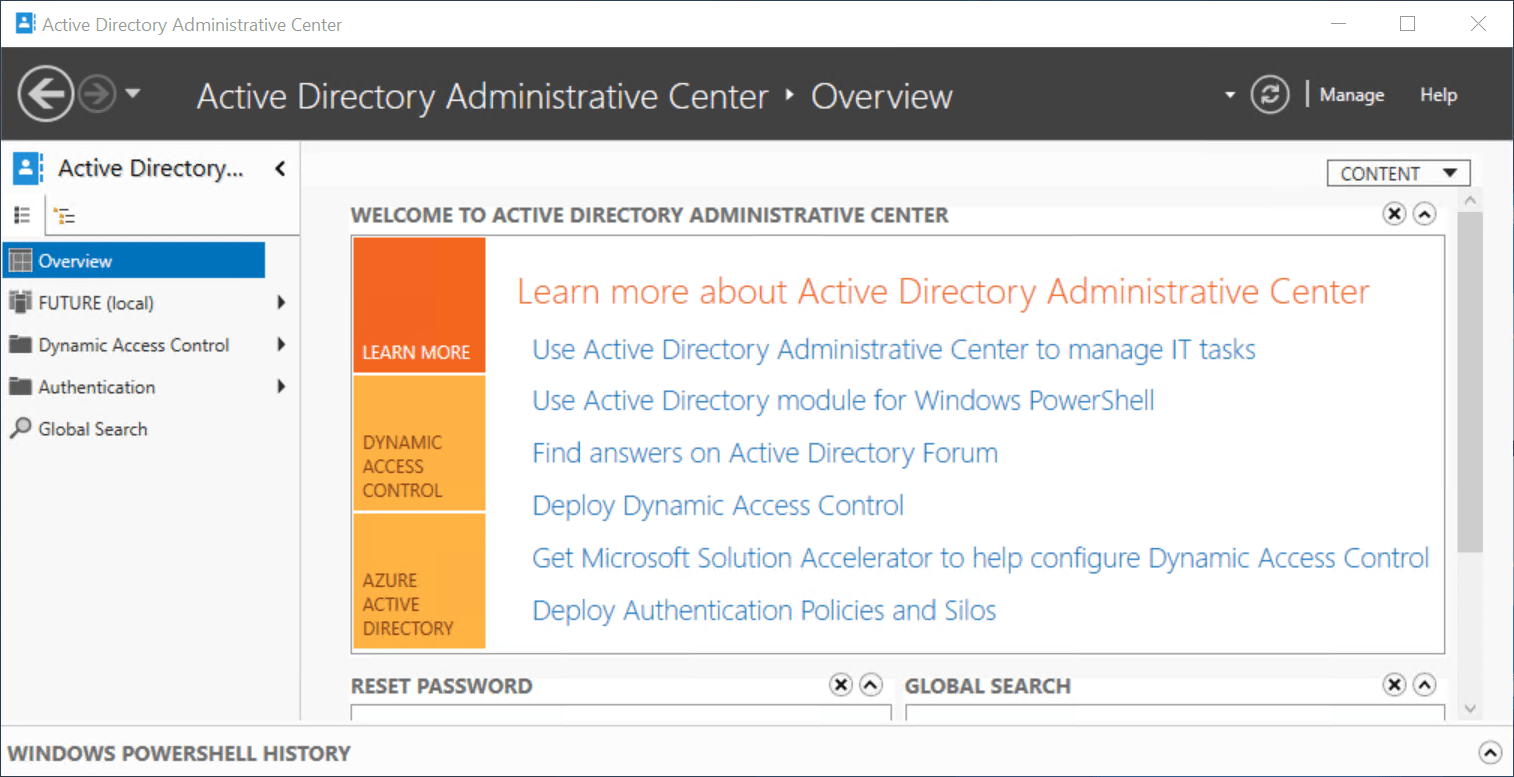 Configure fine-grained password policy
2. On the left-side press on the arrow near the domain name, and navigate to System and then click on Password Settings Container.
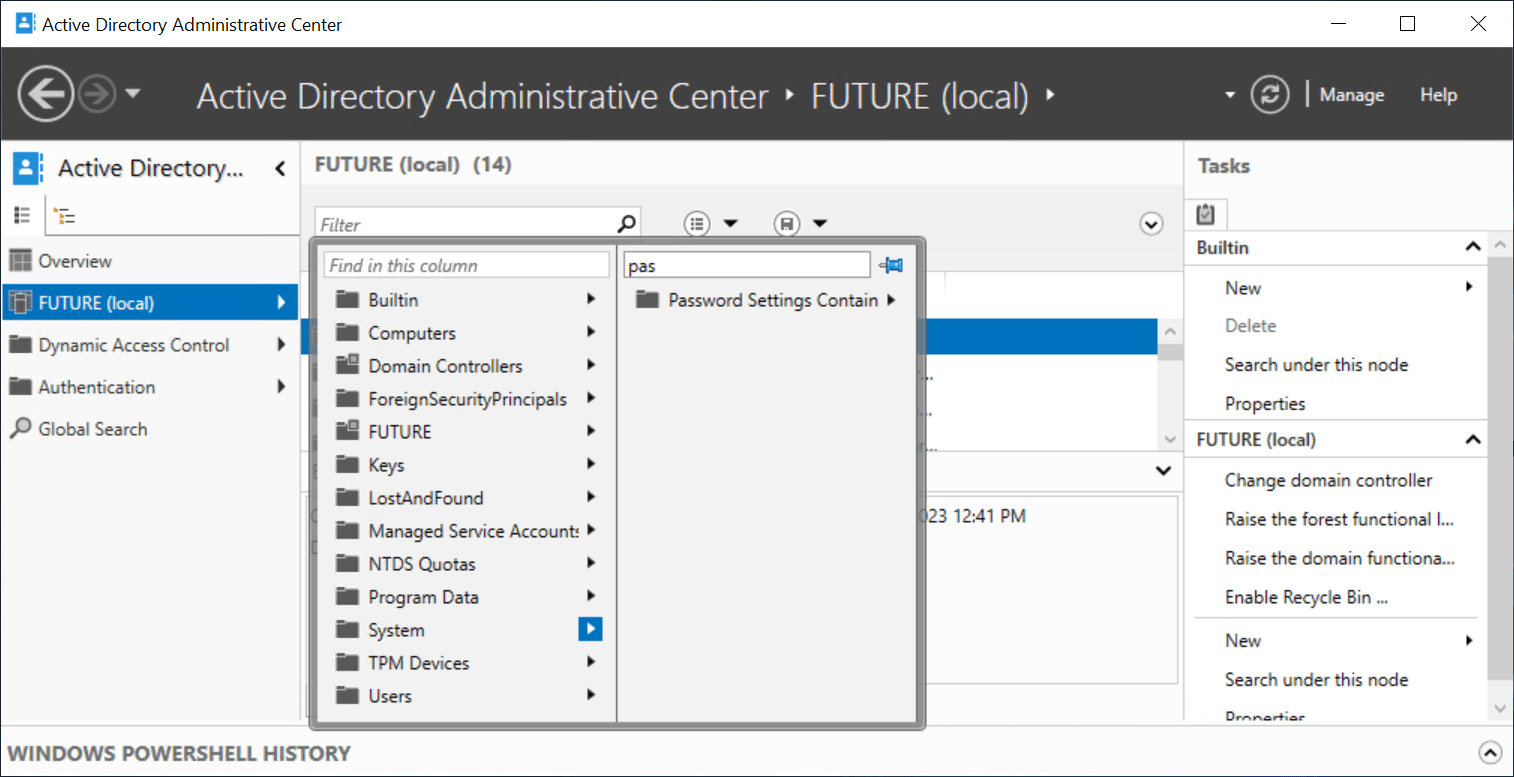 Configure fine-grained password policy
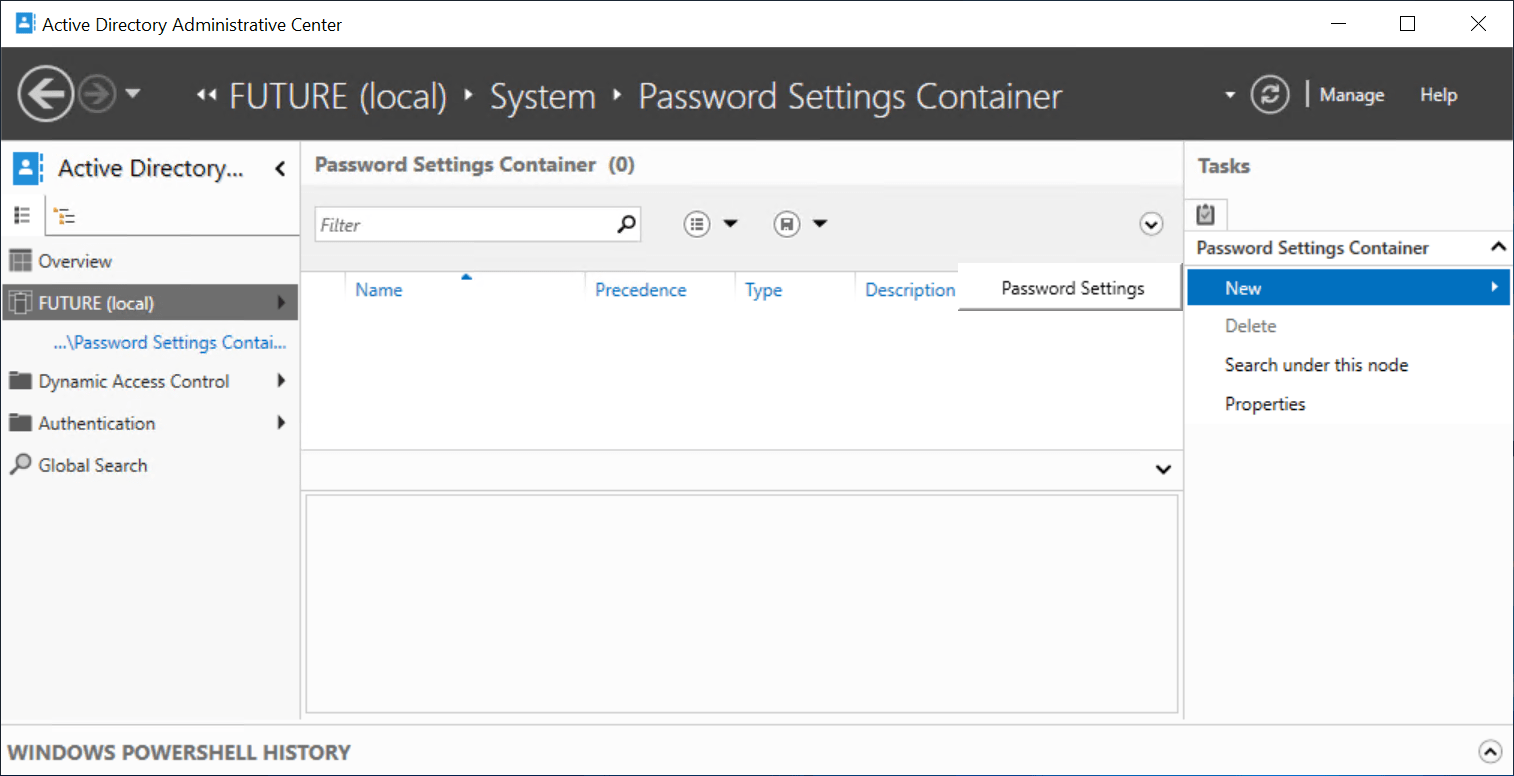
3. On the right-side click on New and then choose for Password settings.
4. Configure the fine-grained password policy. You can consider the password policy in the screenshot as a good start. After the configuration of the policy, press Add high-risky users or user groups to the policy.
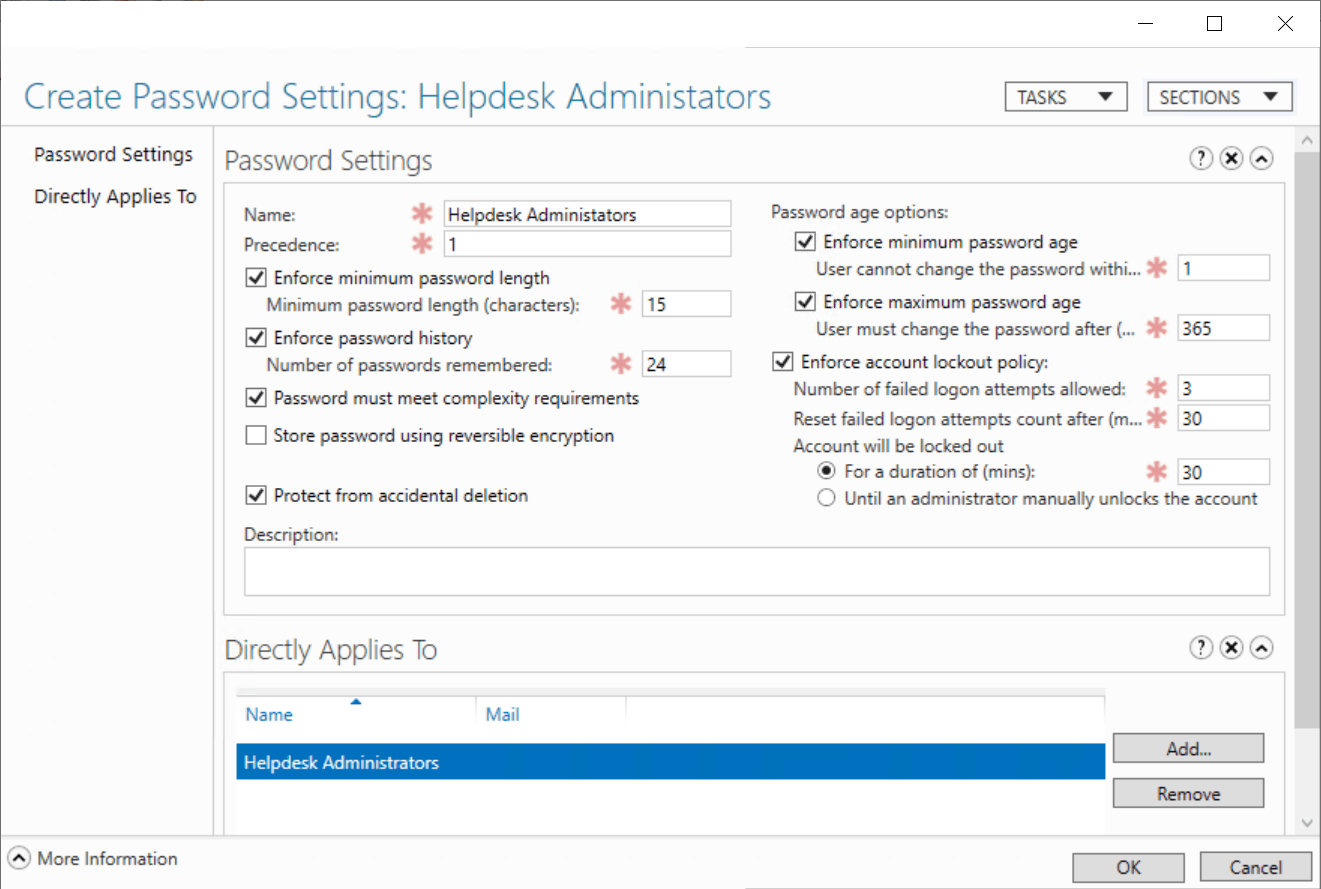
5. Do not forget to press OK to save your changes.
Configuration (PowerShell)
Create new fine-grained password policy with PowerShell.
New-ADFineGrainedPasswordPolicy -Name "Helpdesk Administrators"`
-Precedence 1 `
-Description "Domain Password Policy for Helpdesk Administrators" `
-DisplayName "PassPolicy Helpdesk Admins" `
-LockoutDuration "00:30:00" `
-LockoutObservationWindow “00:30:00” `
-LockoutThreshold 3 `
-MaxPasswordAge "365.00:00:00" `
-MinPasswordAge "1.00:00:00" `
-MinPasswordLength 15 `
-PasswordHistoryCount 24 `
-ReversibleEncryptionEnabled $false `
-ProtectedFromAccidentalDeletion $true `
-ComplexityEnabled $true
Add Security Group to the configured fine-grained password policy.
Add-ADFineGrainedPasswordPolicySubject -Identity "Helpdesk Administrators" `
-Subjects "Helpdesk Administrators"