Fix unquoted service path for Windows services
Microsoft Defender for Endpoint detects the presence of one or more Windows Services on an system that is configured with a path to an executable file that contains spaces and isn't enclosed in quotation marks. This results in an unquoted service path vulnerability that allows a attacker to gain SYSTEM privileges. This type of exploit is only possible if the specific service is running as the SYSTEM user.
If you are not running Microsoft Defender, you can use the information in the Audit section to check whether your machines are running unquoted services.
Audit
Check if there are Windows Services running wth unquoted service paths. Use the command below in an elevated Command Prompt or PowerShell:
wmic service get name,pathname,displayname,startmode | findstr /i auto | findstr /i /v "C:\Windows\\" | findstr /i /v """
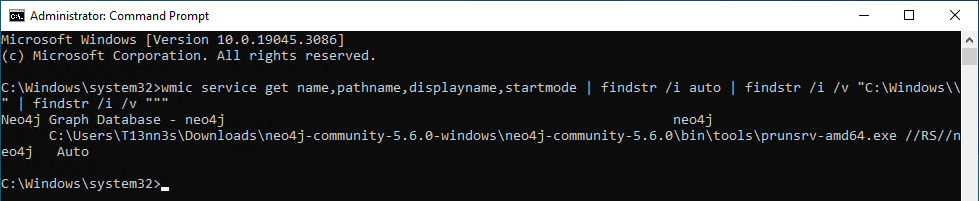
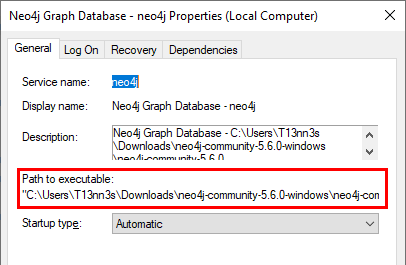
In the Windows Services, we can confirm that this service is using an unquoted service path.
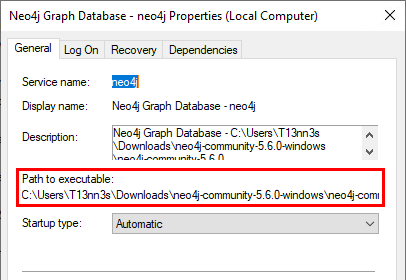
In this example. The Neo4 Graph Database is using an unquoted service path. We are using this example in the Configuration section.
Configuration (Windows Register)
Note
Always create a backup of the Windows Register before making any changes in the registry.
- Open the Registry Editor (
regedit). - Navigate to
HKEY_LOCAL_MACHINE\System\CurrentControlSet\Services. - Check the application name in the output from the
Auditsection.
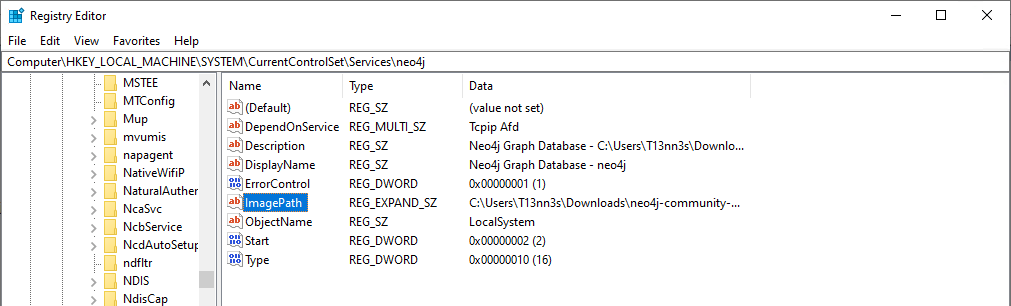
- Place the service between quotes.
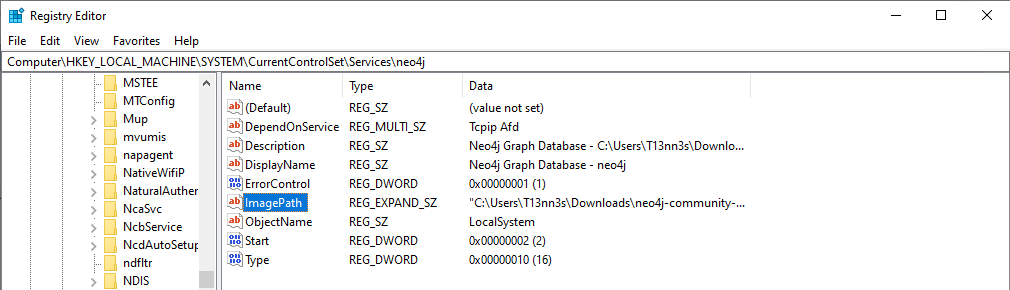
Before:
C:\Users\T13nn3s\Downloads\neo4j-community-5.6.0-windows\neo4j-community-5.6.0\bin\tools\prunsrv-amd64.exe //RS//neo4j
After:
"C:\Users\T13nn3s\Downloads\neo4j-community-5.6.0-windows\neo4j-community-5.6.0\bin\tools\prunsrv-amd64.exe" //RS//neo4j
- Restart the specific Windows Service, and this vulnerability is fixed.
User Impacct
The specific Windows Service needs a restart before this change has an effect. This can impact the user when it's a service that is running for an application that is used for production.