Sharepoint Online Idle session sign-out
Idle session sign-out lets you specify a time at which users are warned and are later signed out of Microsoft 365 after a period of browser inactivity in SharePoint and OneDrive. This policy is one of several you can use with SharePoint and OneDrive to balance security and user productivity and help keep your data safe, regardless of where users access the data from, what device they're working on, and how secure their network connection is.
Audit (Sharepoint admin center)
- Login into Sharepoint Online admin center via https://admin.microsoft.com/sharepoint.
- Navigate to Policies and select Access Control.
- Choose for the option Idle session sign-out.
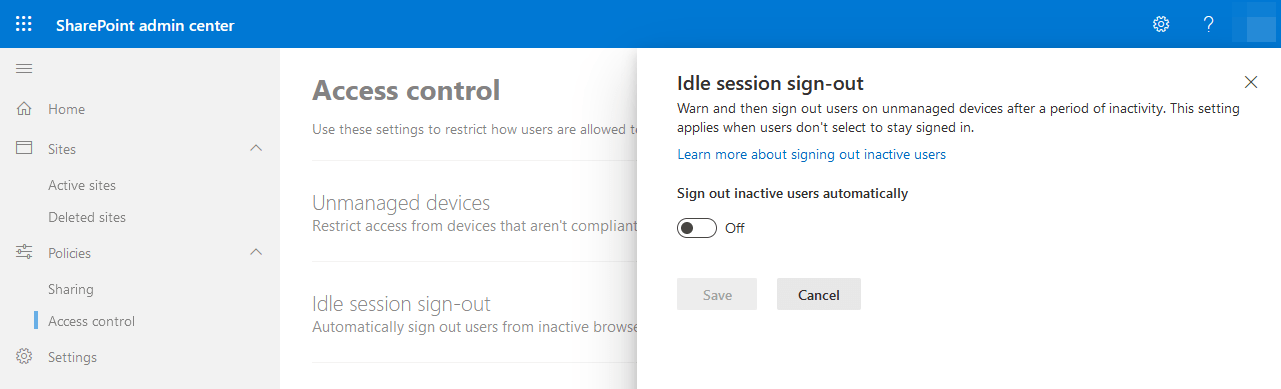 Sharepoint Online Audit idle session sign-out
- Default this setting is configured as Off.
Audit (PowerShell)
Connect your PowerShell session to your Sharepoint Online tenant.
Check if the idle session sign-out is configured.
Configuration (Sharepoint admin center)
- Login into Sharepoint Online admin center via https://admin.microsoft.com/sharepoint.
- Navigate to Policies and select Access Control.
- Choose for the option Idle session sign-out
- Set the sign out inactive users automatically to On.
- Configure the Sign out users after to the value of 1 hour (default value).
- Configure the Give users this much notice before signing them out: to the value of 5 minutes (default value) .
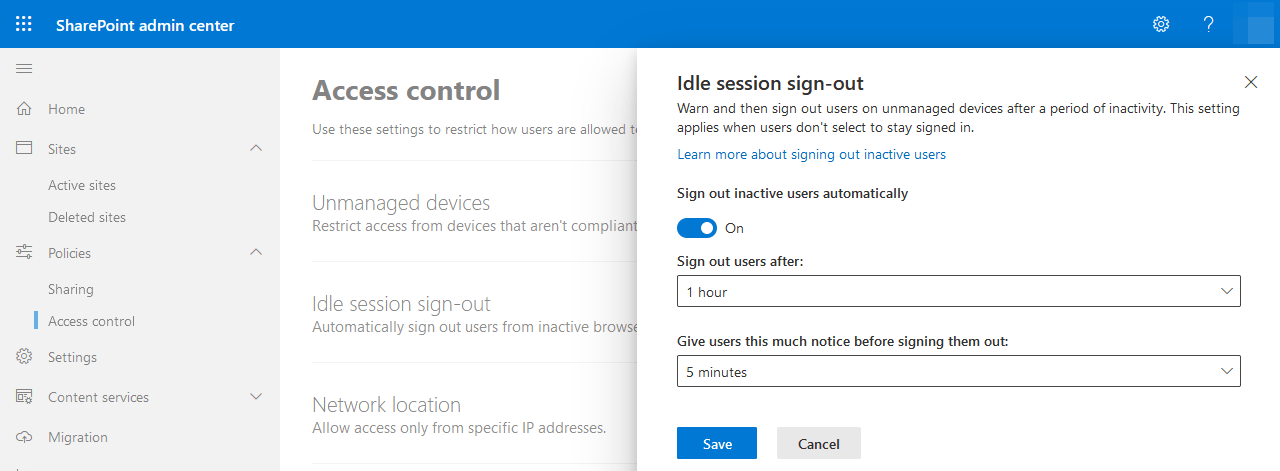
- Do not forget to click on Save.
Configuration (PowerShell)
Make sure you have your PowerShell session connected to your Sharepoint Online tenant, before you run this command.
Set-SPOBrowserIdleSignOut -Enabled $true -WarnAfter (New-TimeSpan -Minutes 5) -SignOutAfter (New-TimeSpan -Minutes 60)
User Impact
Users won't be signed out on a managed device (one that is compliant or joined to a domain), unless they're using inPrivate mode or a browser other than Edge or Internet Explorer. When a user is inactive in SharePoint and OneDrive for a period of time that you specify, on an unmanaged device, a notification message will appear. If users don't select “Continue”, they're automatically signed out.