Disable SMBv1 client driver
Disable SMBv1 client driver
The original SMBv1 protocol is nearly 30 years old. SMBv1 is now considered insecure and poses several risks. It contains several vulnerabilities, including remote code execution, privilege escalation, and DoS. SMBv1 is also a common vector for spreading malware like ransomware. Furthermore, it uses weak authentication mechanisms and is therefore vulnerable to credential theft. In short, there are a ton of reasons to disable SMBv1 and use newer implementations of SMB, like SMBv2 and SMBv3.
Audit
To determine which clients are attempting to connect to an SMB server with SMBv1, you can enable auditing on Windows Server 2016, Windows 10, and Windows Server 2019.
When SMBv1 auditing is enabled, event 3000 appears in the Microsoft-Windows-SMBServer\Audit event log, identifying each client that attempts to connect with SMBv1.
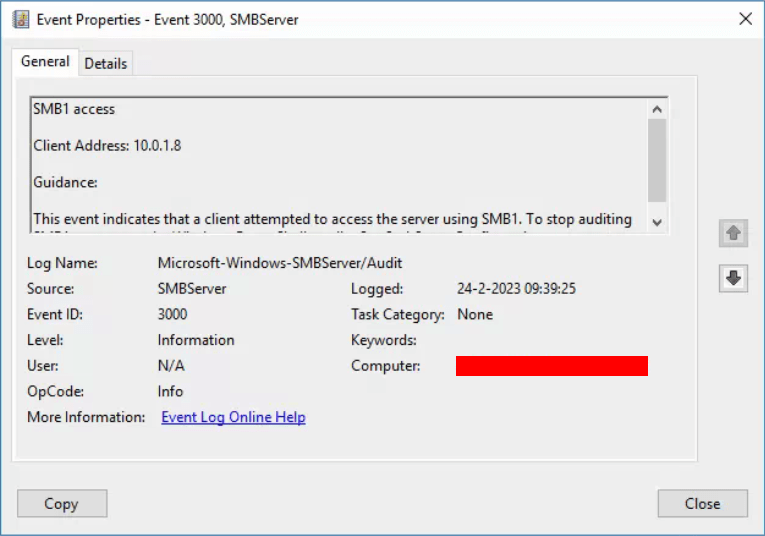
If you are using a SIEM solution, like Microsoft Sentinel, you can send the Event Viewer data to your SIEM solution and make there the analysis of which server is still using SMBv1.
Configuration (PowerShell)
Disable SMBv1 through PowerShell with the following command in an elevated PowerShell session.
It's also possible to disable SNBv1 through PowerShell
Configuration (Windows Register)
Note
Always create a backup of the Windows Register before making any changes in the registry.
Disable SMBv1 through the Windows Register with Windows PowerShell.
Set-ItemProperty -Path "HKLM:\SYSTEM\CurrentControlSet\Services\LanmanServer\Parameters" SMB1 -Type DWORD -Value 0 -Force
Configuration (Group Policy)
In a large Windows Environment, it's recommended to disable SMBv1 through GPO. When someone, by mistaken, enables SMBv1 on a machine, SMBv1 will be automatically disabled by the GPO.
- Download the
SecGuide.admxandSecGuide.adml. - Place these files in your Central Store (ex:
\\contoso.com\SYSVOL\contoso.com\policies\PolicyDefinitions). - Open the Group Policy Management Console (
gpmc.msc). - Navigate to
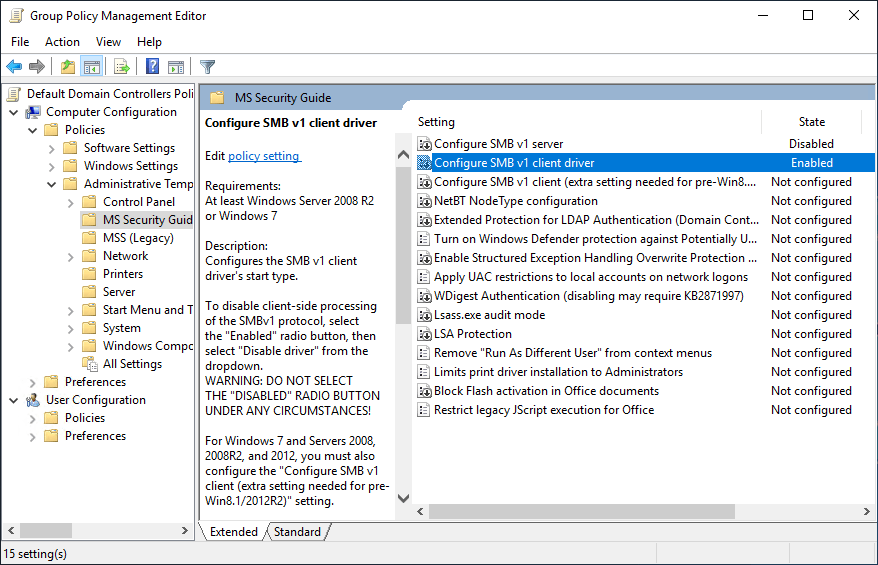
Computer Configuration\Administrative Templates\MS Security Guide. - Configure the policy
Configure SMB v1 servertoDisabled. - Configure the policy
Configure SMB v1 clienttoEnabled: Disable driver (recommended).
Configuration (Microsoft Intune)
Disable SMBv1 through Microsoft Intune.
- Login into Microsoft Endpoint Manager (https://endpoint.microsoft.com).
- Navigate to
Devices-->Configuration Profile. - Select the profile on which you want to disable SMBv1 (or create a new Configuration Profile, choose profile type
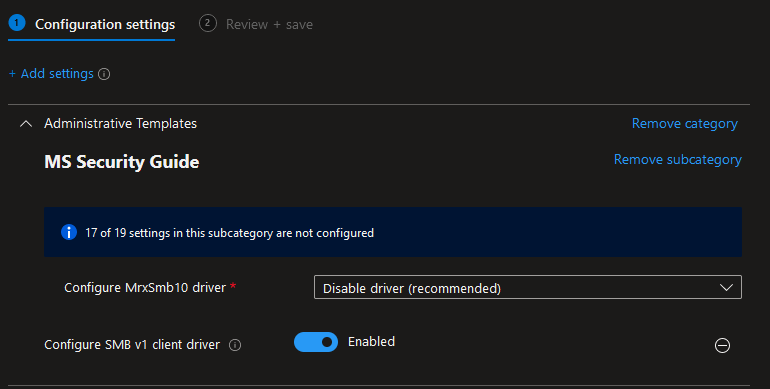
Setting catalog). - In the profile, navigate to
Administrative Templates\MS Security Guide\Configure SMBv1 client driver. - Set this policy to
Enabled: Disable driver (recommended).
User Impact
Disabling SMBv1 support may prevent access to file or print sharing resources with systems or devices that only support SMBv1.